Nimva Documentation
  • Home
  • Getting Started
  • Page Builder Tutorials
  • Forum
  • Contact Us
  • Home
  • Header
  • Setting a Favicon

Header Tutorials

  • How to Enable/Disable the Top Bar
  • How to edit the Top Bar Contact Info
  • How to Edit the Top Bar Social Media Icons
  • Creating a Text Logo with Tagline
  • How to set your Image Logo
  • Setting a Favicon
  • How to Enable/Disable a Sticky Header
  • Enable Header Resize on Scroll
  • How to change the Header Layout
  • How to Enable/Disable the Shopping Cart Icon in Header
  • How to Enable/Disable the Search Icon in Header
  • How to create a Transparent Header
  • Creating a Menu
  • Customizing the Header Menu
  • How to create a MegaMenu

More Tutorials

  • Getting Started Tutorials
  • Header Tutorials
  • Footer Tutorials
  • WooCommerce Tutorials
  • Page Builder Tutorials
  • Blog Tutorials
  • Portfolio Tutorials

Setting a Favicon

Creating and setting up a Favicon

Written by RockyThemes
Filed under: Header

To setup your own Favicon, go to Theme Options -> Logo -> Favicon.
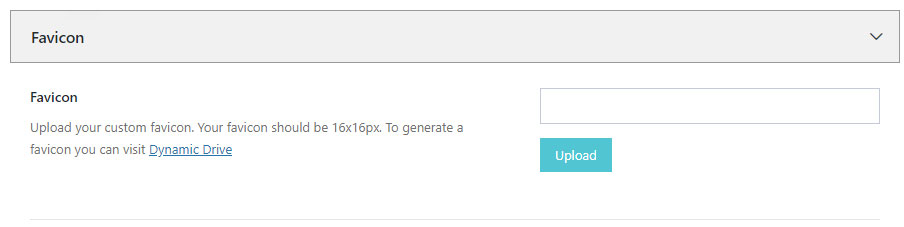
Your favicon should be 16×16 and generated correctly, using an online service like Dynamic Drive or your own Image editing Software.

Once the favicon file .ico has been generated, upload it and hit Save All Changes button

Purchase Nimva3, the Ultimate Drag&Drop WP Theme for $47

Purchase Nimva3 and Get Started
Copyright ©2019 RockyThemes
Premium Themes for WordPress

Rocky

  • Contact

Themes

  • Creativo
  • Nimva

Support

  • Video Training
  • Forum

Social

  • Facebook
  • Twitter