Creating a Blog Page
Using Creativo Blog Page Templates to create beautiful and functional blog pages.
 Written by RockyThemes
Creating a blog page with Creativo is extremely easy, thanks to the page templates we already crated. Page templates are special designed pages that will allow us to display the latest posts in different formats or even our latest Portfolio items. For this tutorial we will create a Blog Page, thus making use of the integrate Blog Page Templates that come with the Creativo theme.
To create a Blog Page, follow these easy steps.
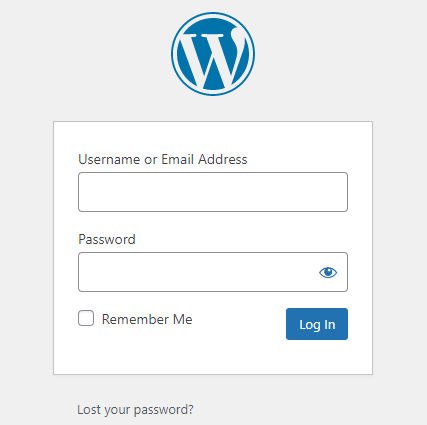
Navigate to your WordPress Admin dashboard – login first, if you are not logged in.
Before creating a blog page, we have to first create some posts. To create posts, navigate to Posts -> Add New – this is basic WordPress functionality.
A basic post, would need the following details:
- A title
- Some content
- At least one Featured Image, set under the Featured Images area.
For more info, on how to create a post, please follow the: Creating and Customizing a Post
Once we have a few posts created we can create our Blog page.
Navigate to Pages -> Add New. In the new window, enter a title for your new page, which will be used as your actual Blog page – a page that will display your latest posts.
For example, for the title we could use: Blog Page.
From the right sidebar of your editing window, under Page Attributes -> Templates -> choose a blog related template. Currently, the available blog page templates are:
- Blog Style Big Images. View a live example here
- Blog Style Small Images. View a live example here
- Blog Style Grid. View a live example here
- Blog Style Masonry. View a live example here

The content area of the page can be left empty. Anything we add on this page, in the content area will appear above the actual blog posts. For instance, we could enable the Page Builder and add a Custom Heading element or even a slider. This will be show a bit down, on this tutorial.
Once we have selected a Blog page template – Big Images or Small images for instance, we can simply publish the newly created page.
For this tutorial we will use the Blog Style Big Images template, since it’s one of the most used layout. Our new Blog page will look something like the following:

All the design options can be customized by using the Creativo Live options.
Having Creativo Live Options enabled, navigate to Blog area. All the customization options can be found in this section for Archive pages and also Single Post pages.
Blog Pages are considered Archive pages so will inherit the design options set under this area.
That’s pretty much it.