Working with Creativo Blocks
Drag and Mix section blocks from different templates, without having to import any template at all.
 Written by RockyThemes
Starting with version 6.4 of Creativo we have introduced a brand new feature called Creativo Blocks.
With Creativo Blocks you are now able to Drag and Mix different sections from the available Creativo Templates, without having to import any template at all.
To access the new Creativo Blocks feature, you can either edit an existing page or create a new page and enable the FrontEnd or Backend Visual Composer.
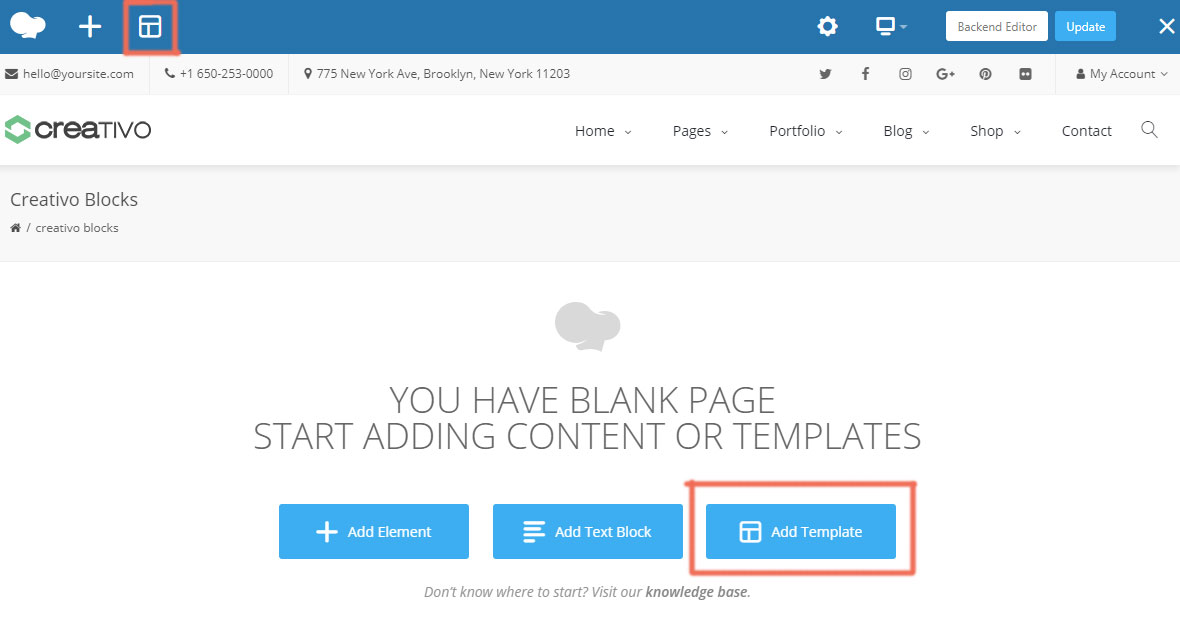
Next click on the Add Templates button located next to the Add Text Block button, if you are creating a new page or at the Top Left Templates button if you already have content on your page.
A new pop-up window will appear allowing you to see the new Creativo Blocks feature.
By default all the sections used to create the entire Creativo Templates collection, will be shown.
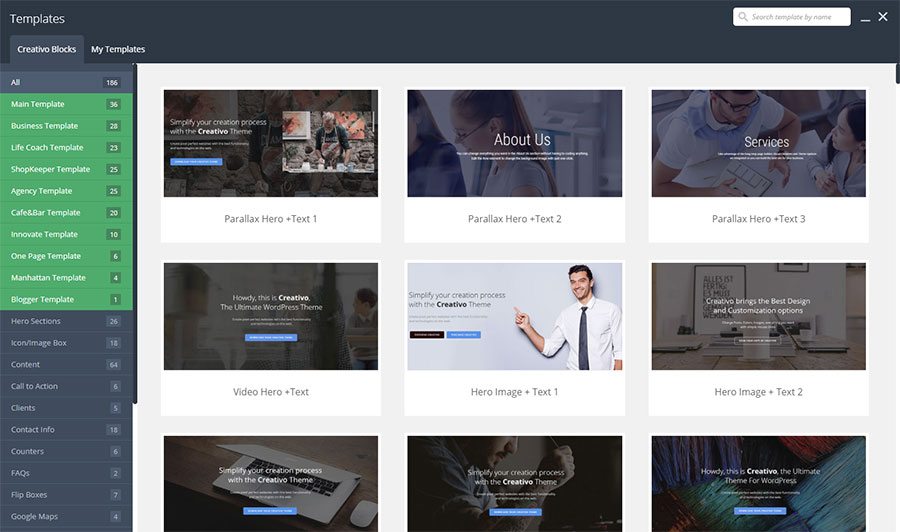
Use the green Filtering options if you want to see the sections by template, or use the default element filtering option located below the green area.
Each template created using Creativo will be listed with the sections used to create that template.
To use a section simply hover your mouse over it and click on the Text below each section to insert it into your page.
You will be able to change it with your own content and styling.
Note that some sections using elements like Clients or Testimonials will require you to first create at least one Client and one Testimonial to use them correctly.
Single Images, Image Galleries, Team Members and Owl Carousel elements also require you to choose and select your own images from your Media Library.
With each new template we will add in the Creativo library, the sections used to create them will also become available in the Creativo Blocks area.