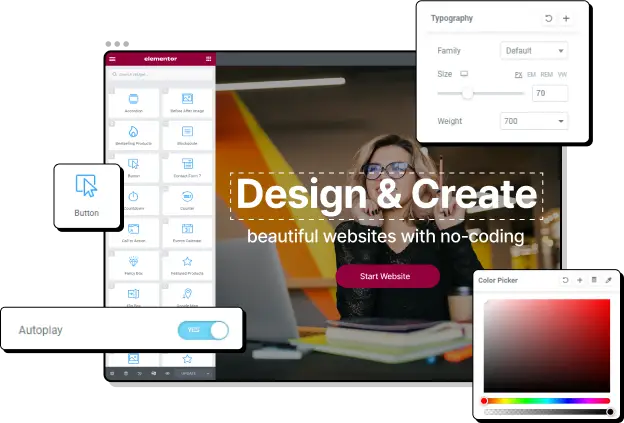
Are you trying to choose the right editor for your site? Gutenberg and Elementor are two of the most popular options you can choose from.
It’s important to choose the right tool for creating content in WordPress. When you work with a specific page builder or editor, you need to get used to its interface and feature set.
Gutenberg and Elementor are quite different, but trying both is risk-free. Gutenberg is the default block editor in WordPress, and the basic Elementor plugin is free.
It’s still worth knowing which editor you want to work with, especially at a critical stage when you’re revamping your site or building it from scratch. Let’s compare Elementor and Gutenberg, so you make the right choice!
What are Gutenberg and Elementor?
Gutenberg is WordPress’s block editor, which launched in 2017 and replaced the classic editor. The classic editor was the default method for creating posts and pages prior to the introduction of the Gutenberg block editor. It is more akin to a standard word processor tool and includes the core formatting options at the top of the page. You can still use this editor but you’ll need to install the official classic editor plugin.
With Gutenberg, you use blocks to create pages. For example, you can add text, image, video, and quote blocks, among other blocks. This gives you a visual way to create landing pages, blog posts, or any other page you need for your site.
Elementor, on the other hand, is one of the most popular page builders for WordPress and is used by ten million+ websites. Elementor replaces the Gutenberg block editor, so you need to get used to its interface if you want to use it. However, it offers many features that Gutenberg doesn’t.
This brings us to the key difference between Gutenberg and Elementor. Gutenberg is a block editor, while Elementor is a fully-fledged page builder. Gutenberg is the closest thing to a page builder that WordPress has ever released, but its primary function is to help you create and design great content within your pages.
With Elementor, you can also change the design of your pages as you’re editing. You can customize padding, adjust your header and footer, create global rules for colors, etc. You can use several templates as the basis of your pages but customize them as you like. Gutenberg’s design elements will simply correspond with your theme’s in-built design.
Gutenberg VS Elementor
We will look at essential criteria that will help you decide whether you prefer Gutenberg or Elementor. We’ll compare the two and give our own opinion at the end.
The Interface
Under the interface, we will look at three main areas that set these two editors apart. We will look at back-end vs. front-end editing, live editing, and drag-and-drop features.
Back-end vs Front-end Editing
The key difference between the two editors is that Elementor is a front-end editor, while Gutenberg is a back-end editor.
With Elementor, you can see your design changes through live previews while still editing, making it easy to double-check your site modifications. This also helps reduce the number of errors when editing.
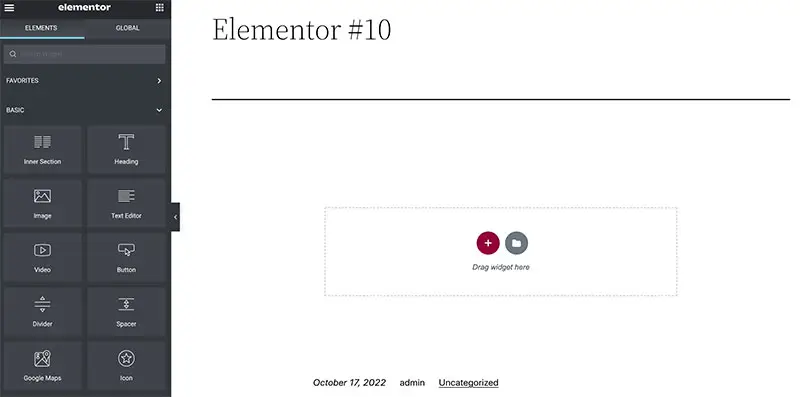
Front-end editing improves productivity by allowing you to edit faster without going to the back end. You also get to publish content in just one click.
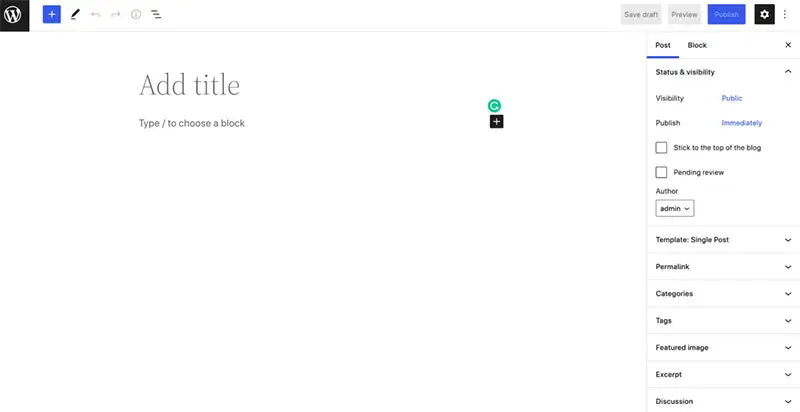
On the flip side, Gutenberg back-end editing doesn’t allow you to see your design previews while you’re making changes. You’ll have to edit without seeing the applied changes, and once done, you click the preview button to see your new designs as they’ll appear to your users.
Live Editing
Elementor is an actual live editor – you see the changes directly on your site before saving. This helps you save time and energy, as well as customize every part of your site visually as you go.
Gutenberg is technically a live editor, but it’s not exactly WYSIWYG (What You See Is What You Get). You can preview the page before publishing, but this makes the process just slightly more cumbersome. Imagine clicking the preview button 20 times to see if your image setup is correct. It’s like you’re a visitor on your website. And that can be frustrating.
Drag and Drop Feature
Elementor is a drag-and-drop editor, meaning you can simply drag widgets into your page and build your content. Through this feature, you can add text sections, image sections, sidebars, testimonial sections, and so much more.
You can also control your widgets’ position and create complex page layouts. Moreover, you also don’t need coding knowledge to do any of these.
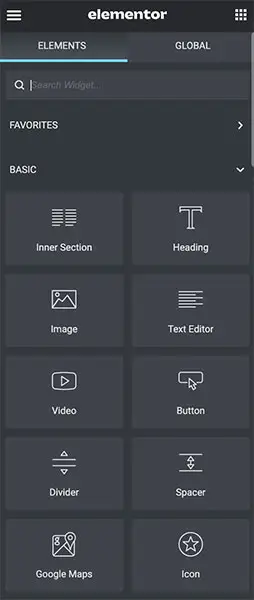
Gutenberg has some drag-and-drop functionality but you can only order your blocks. It’s not possible to change the height or width of your blocks. With Elementor you can totally control the position of your widgets and create complex page layouts.
Ultimately, Elementor is more powerful than Gutenberg. The main advantage of Gutenberg is that you may already be familiar with it as a WordPress user.
Blocks vs Widgets
Elementor has widgets, while Gutenberg has blocks. Gutenberg and Elementor both have an extensive library of content blocks/widgets you can use to build your pages.
Elementor has over 100 widgets, though many of these widgets are only available in the Pro version.
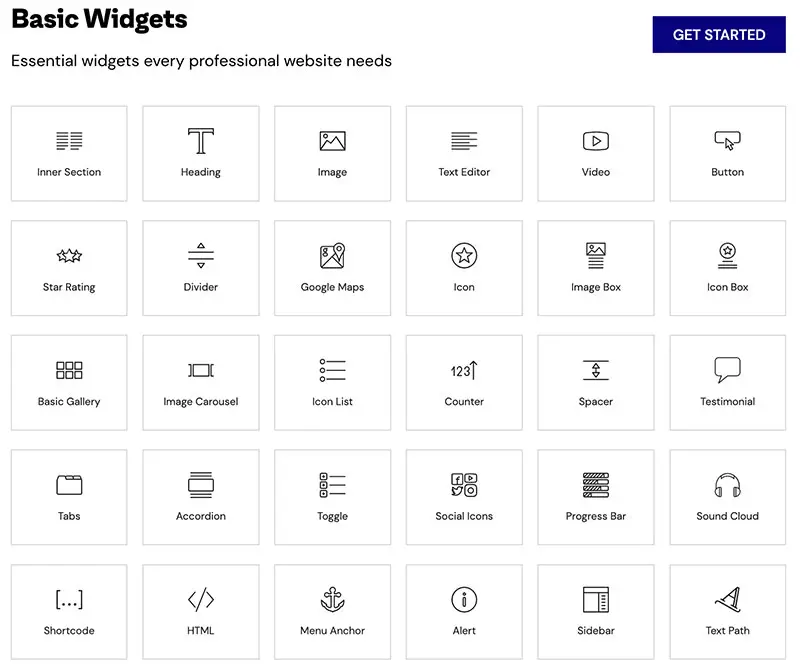
You still get a lot of functionality with the free plugin – and if you use a theme that integrates with Elementor, you can get even more functionality with Elementor without needing the Pro plugin. These widgets make Elementor user-friendly. Even total beginners can easily use the widgets to unleash creativity to create a more beautiful and functional website.
Gutenberg has over 70 blocks out of the box, categorized into Text, Media, Design, Widgets, Themes, and Embeds.
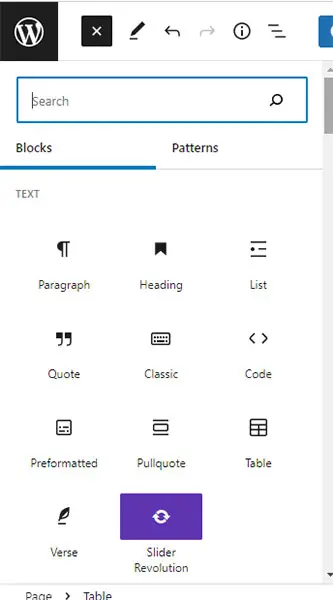
You can set reusable blocks and store your most used blocks for easy access, allowing you to use one block several times for your multiple WordPress sites. You can also create custom blocks in Gutenberg, but this requires some coding knowledge.
You can add extra functionality to both Gutenberg and Elementor with third-party plugins. You can add more blocks to the Gutenberg editor using plugins like CoBlocks. Elementor has a lot of plugins that offer extra functionality, such as Essential Addons for Elementor.
Elementor also offers 300+ templates in addition to widgets, which you can use as the basis for any page you want to create.
Gutenberg is soon launching Full Site Editing, which will make the block editor much more powerful. With Full Site Editing, you can edit and navigate various templates, set global styles, use Block Themes (themes built using templates), and much more.
Compatibility
Since it’s native WordPress, Gutenberg is compatible with all themes and plugins. To get the most from Gutenberg, you’ll want a theme that supports Full Site Editing.
Elementor is compatible with many themes and plugins and has many official integrations. You get a lot of flexibility with Elementor through these integrations. One prime example is Elementor’s integration with WooCommerce.
WooCommerce comes with a range of Gutenberg blocks that you can use to customize your eCommerce store. However, there’s a WooCommerce Builder available in Elementor Pro which gives you access to 24 widgets that you can alternatively use, which you may find more powerful and intuitive.
Responsiveness
The ability of your website to be responsive on all devices is vital. 59.5 percent of all web traffic comes through mobile phones. This means your website should be easily accessible by mobile users to lock in this vast and valuable traffic.
What’s more, search engines like Google have mobile-first ranking criteria. This simply means Google uses mobile versions to index and rank websites. In other words, if your site is mobile-friendly, it will rank high when users search for your keywords through mobile phones. The vice versa is also true.
The responsiveness of your website mostly depends on your theme, and all modern WordPress themes are responsive, so most users will have no problem building a site that adapts to different devices.
However, you get more flexibility with Elementor as you can customize every part of your website to best fit the screen of particular devices. Additionally, with Elementor, you can easily insert various styling elements such as alignment, padding, and margin adjustment to increase site responsiveness.
If you plan on using Gutenberg and want to do more to optimize your site for mobile devices, there are plugins that can help with this, such as AMP for WP and WP Mobile Menu. Ultimately, it’s more convenient to have all these options in a single page builder rather than spread across multiple plugins.
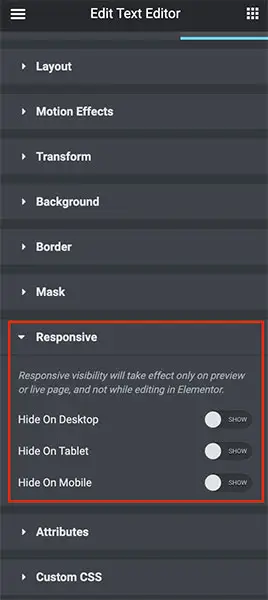
You can also add or hide specific elements for certain devices. For example, you can add a section on the desktop but hide it for mobile users.
Advanced Formatting
Both Elementor and Gutenberg offer advanced formatting features. However, the formatting style still compares.
Gutenberg will allow you to do some advanced modifications, such as customization of texts, images, lists, etc. To do critical tweaking of your website, you’ll need to add custom CSS to your chosen block.
On the other hand, Elementor is relatively easier to tweak sections or elements. With Elementor, every single formatting style is on the front panel. Therefore, you can format the widgets, adjust height and width by sliding, and change text color, background color, images, styles, font icons, etc.
Templates
Elementor offers two different kinds of templates; block templates and page templates. With the block templates, you can build specific parts of your page. While with the page template, you can design specific types of pages through the builder plugin.
The templates are varied and can be used for different websites across many fields.
If you decide to use templates created by third parties, you just need to import them by uploading them to your site.
On the other hand, Gutenberg has a minimal number of templates available to you. Using the templates provided can somehow constrain your customization needs. If you decide to use Gutenberg, you may therefore have to download additional templates.
Our Winner? Use Elementor with a Compatible Theme
While Gutenberg is a very powerful editor, Elementor is an upgrade in many ways, and you should consider it unless you purposefully want a more basic editor or want to hold out for Gutenberg’s Full Site Editing.
To really utilize Elementor to its full potential, you should use a theme it integrates with. Creativo is one of the best options for this. It comes with 23 pre-built websites that you can totally customize using Elementor. With just one click, you can import the website of your liking and customize it in minutes.
Here are some of the features that make Creativo better:
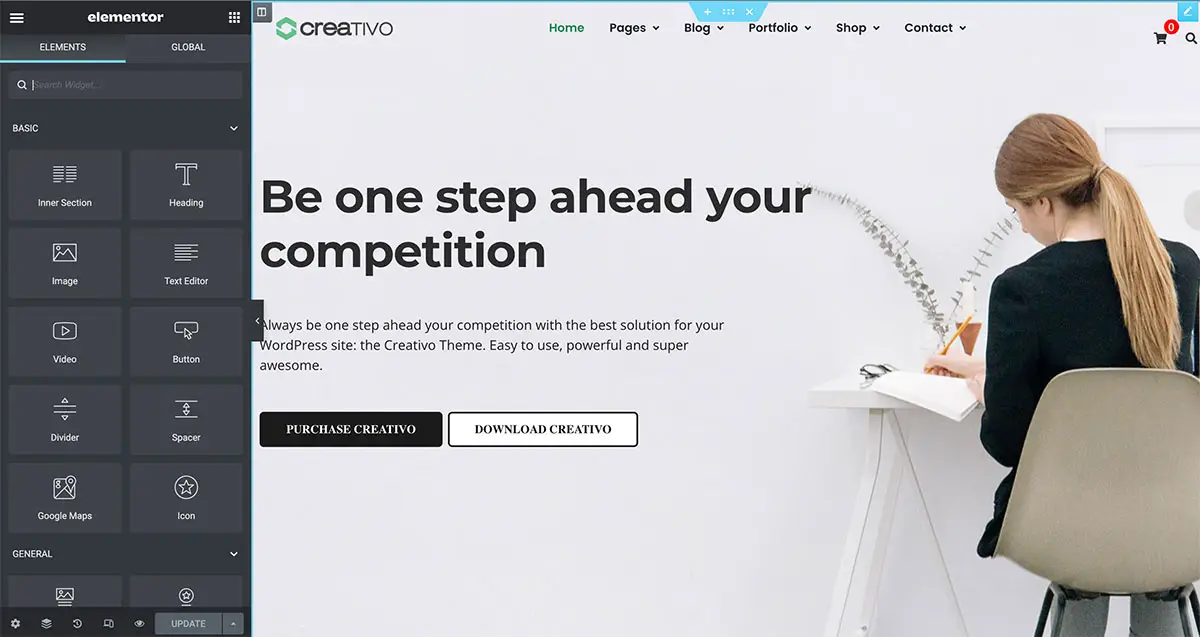
Creative works seamlessly with Elementor enabling you to create and customize web pages visually easily.
You get 50+ exclusive Elementor widgets in Creativo, called Creativo Elements allow you to have endless customization options. This means you can use the free version of Elementor and still get similar functionality as the Pro version!
Some of these widgets are:
- Testimonials Slider
- Before & After Image
- Slider Revolution
- Counter
- Contact Form 7
- Buttons
- Flat Portfolio
- OWL Image Carousel
- Flip Box
- Call to Action
- Video Pop-up
- Countdown
- Google Maps
- Team Member
Blog Post and Archive layouts Functionality
You can use Creativo Elements to create custom blog post layouts. This means you get a setup for blogging that is more powerful than the Gutenberg block editor!
You’ll be able to create several layout designs and assign them based on your post categories, date, authors, and more.
Fully Flexible Header Builder
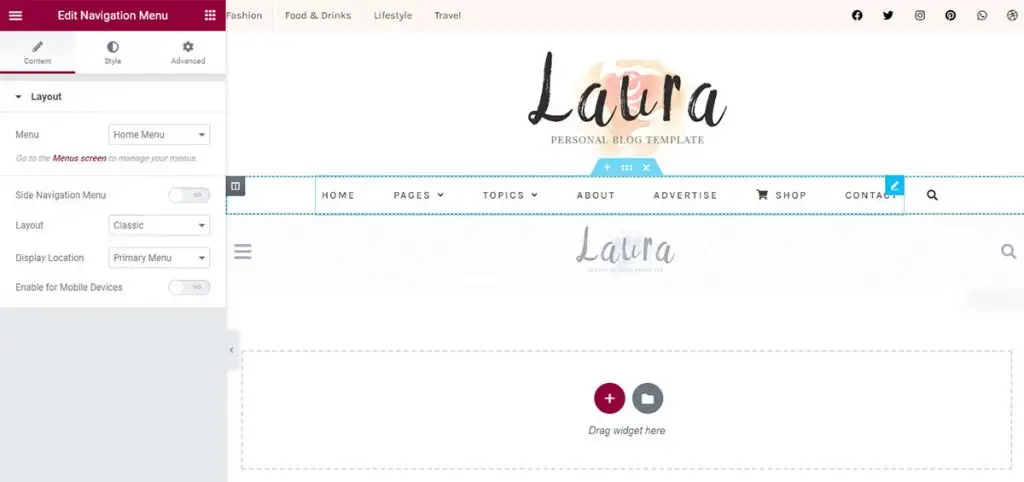
You also get a totally flexible Header Builder that lets you create as many website headers as you need and assign them globally to all web pages or individually to any pages, posts, or custom post types.
Through this feature, you can add different headers for desktop and mobile devices to best improve site responsiveness.
You can also set up the headers to be transparent, sticky on scroll, or to change position from top to right or left side of the screen.
What’s more, you can use conditional display rules to choose the location your headers will be used.
Fully flexible Footer Builder
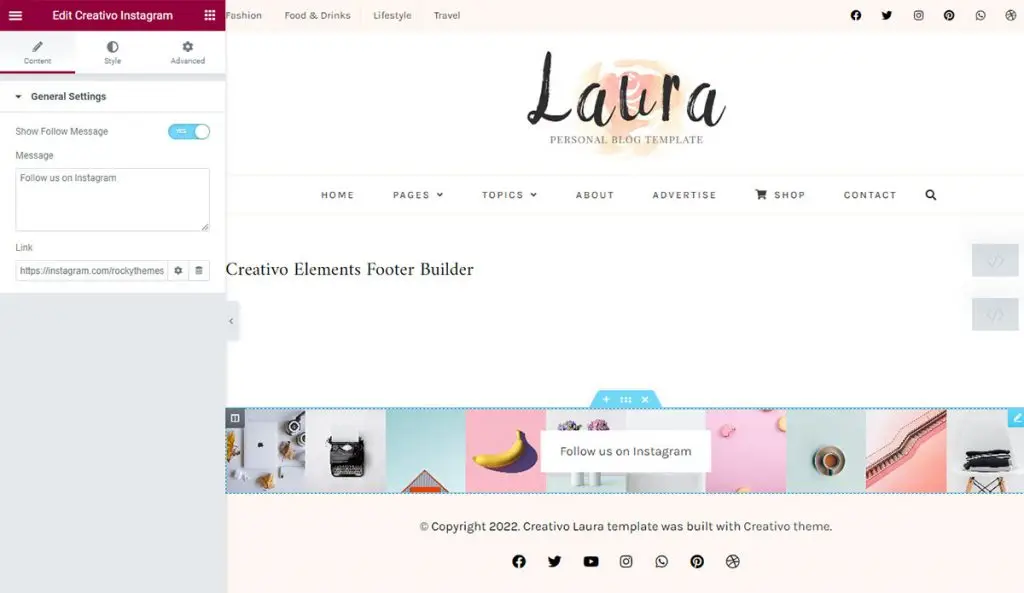
Creativo allows you to create pixel-perfect footer sections, which you can assign globally to all your website pages or assign individually to posts and pages.
Through this feature, you can be able to create beautiful and relevant footers for every page or post on your site. This is because if the content in the post page footer doesn’t fit to be on the home page, you can easily create another footer header and assign it to the homepage footer.
Creativo Templates
Creativo comes with more than 100 pixel-perfect templates you can use to customize the look of your website.
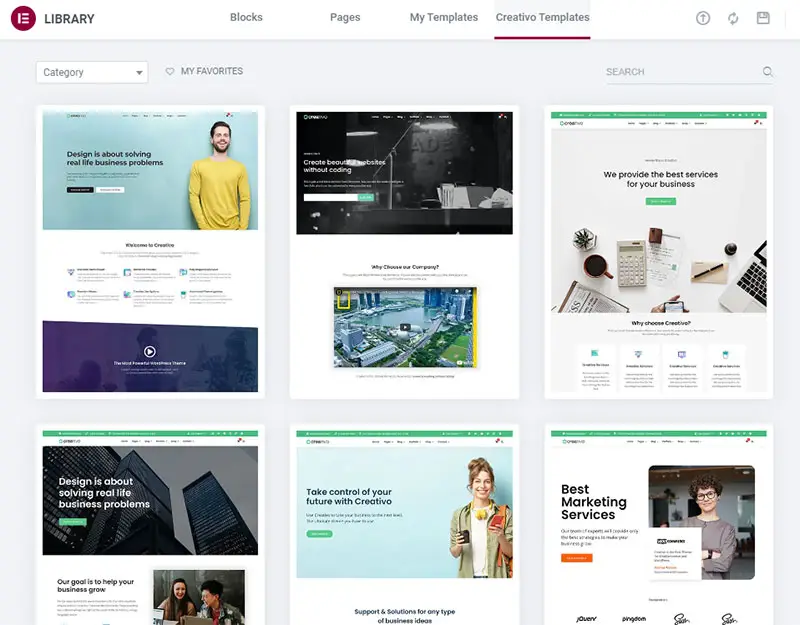
These templates are pretty great for creating and mixing sections from different Creativo Sites without having to import any template at all. For example, if you like a service section from a template, you can import that section and use it on your website. If you like another template’s contact us section, you can import it as well and use it for your own website.
With the use of these blocks, you can create a beautiful, engaging, and functional website that can be hard to create if you were to choose one template and stick to the design of its sections.
Fully Customizable with Live View
With Creativo, you can customize every part of your website while seeing the live edits taking effect. Whether you’re running videos as the background of your pages’ video and parallax backgrounds or setting up products for your e-commerce website, you can see your changes as you go.
Fully Responsive & Retina Ready
Creativo lets your website adapt automatically to various screen sizes, including Retina screens. This makes your website responsive and user-friendly for various users using different devices to access your website.
See what customers say about Creativo:
” I purchased this theme five years ago. My business keeps evolving, and Creativo evolves right along with it! I’m not a coder, and the theme has been really easy to use. If there is ever a glitch, and I need help, their support ALWAYS gets back to me very quickly. I hope that the creators keep improving the experience because it gives me peace of mind to have something to depend on in this ever-changing Internet world! ” – JackieTrottmann
“I love how flexible Creativo is. If you can think it, you can make it. Great for someone who knows what they want and is tired of looking through thousands of pre-made themes trying to find something close.” -LORI
“When I decided to start a “real website,” I researched themes and was drawn to Creativo. Reviews were good and the theme looked great on the demo site I viewed. That was 2014, and I am still using Creativo. The best thing I can say, however, has to do with the support. The instructional videos made setting up my site far less daunting. Over the years, when I have a question or run across a problem, I get an on-point answer, and I get help very quickly.”- Dr. Frank Buck
Testimonials taken from the Rocky Themes website.
Get Started with Elementor and Creativo
Elementor and Gutenberg are excellent choices for building pages on WordPress, but Elementor is more flexible. Given that you can get Elementor for free, there’s no reason not to try it.
Elementor works best with a theme that integrates with it, and Creativo is an excellent choice for this, as you get lots of added functionality to customize your site with custom Creativo Elements.
Get Creativo today and pair it with Elementor for a powerful website-building combo.