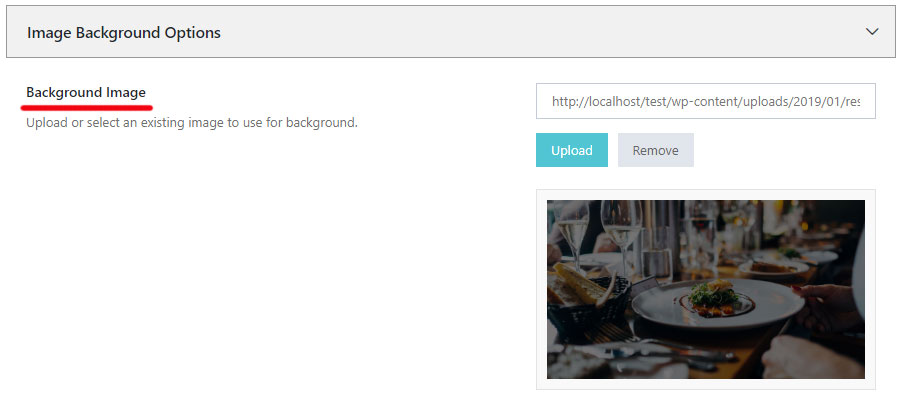
To setup a background image for your entire site, navigate to Theme Options -> Background -> Image Background Options
Use the Background Image field to choose an existing image from your Media Library or upload your own image.
An important setting that must be active is the Site Layout to be set as Boxed, otherwise the background Image will not be displayed. Scroll up and under Site Layout Settings -> Site Layout choose Boxed.
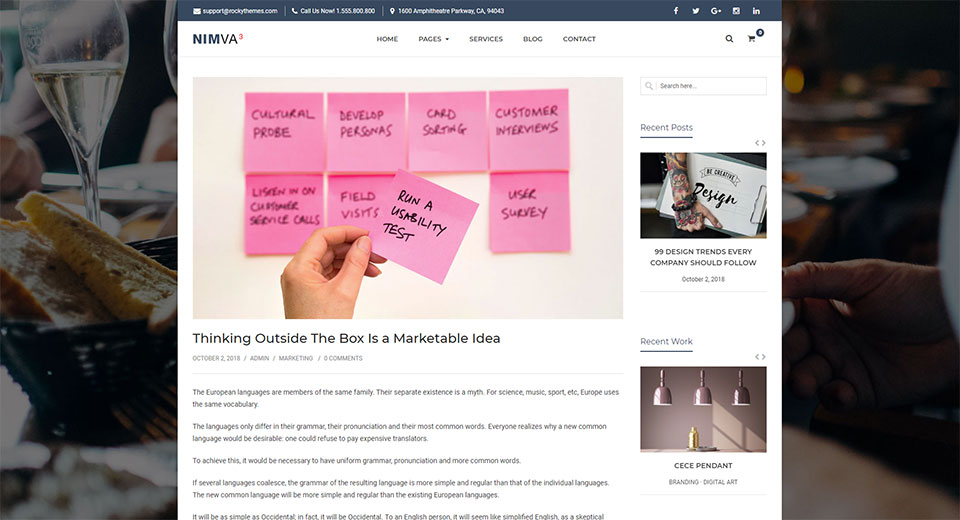
Your site will now look similar to the following example:
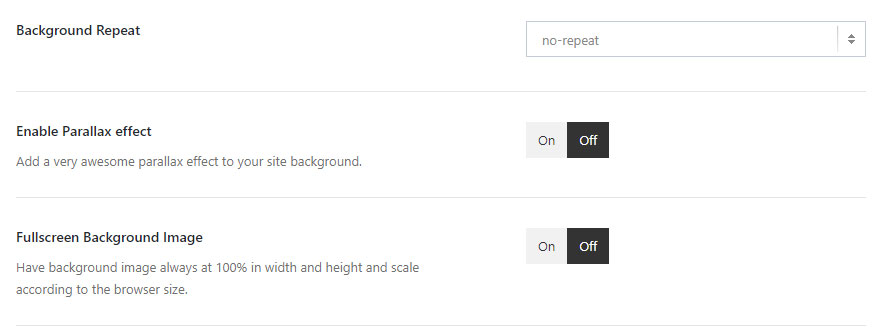
Use the settings provided under Image Background Options to adjust the background repeat as well as setting it as Fullscreen or enable the Parallax effect.
Background Repeat – set how the background image will be repeated throughout the page
Enable Parallax effect – use this option to enable a parallax effect on vertical scroll. This requires your image to have a bigger height so the parallax effect can work correctly.
Fullscreen Background Image – set this option to force the image take the entire width and height of the browser window. The background image will also be fixed on scroll.
 Written by RockyThemes