Nimva Documentation
  • Home
  • Getting Started
  • Page Builder Tutorials
  • Forum
  • Contact Us
  • Home
  • Getting Started
  • Choosing a Color Scheme

Getting Started Tutorials

  • Installing Nimva Theme
  • Importing the Demo Content
  • Nimva System Requirements
  • Choosing a Color Scheme
  • Using Google Fonts
  • How to change the Site Layout
  • Disable the Page Title and Breadcrumb
  • How to change the Site Width
  • How to Enable/Disable the Site Preloader
  • How to Enable/Disable the Smooth Scrolling effect
  • Adding Google Analytics Tracking Code
  • Adding Custom Code (JavaScript) to Header
  • Adding Custom Code (JavaScript) before
  • Adding Custom Css rules
  • How to disable the Sidebar on a Page/Post/Portfolio
  • How to set a Background Image for your entire site
  • Selecting Default Font Sizes
  • Setting how many Featured Images to use for Posts & Portfolio
  • Remove the Search Box from the Page Title and Breadcrumb section
  • Customize the Page Title and Breadcrumb section
  • Updating Nimva to the latest version

More Tutorials

  • Getting Started Tutorials
  • Header Tutorials
  • Footer Tutorials
  • WooCommerce Tutorials
  • Page Builder Tutorials
  • Blog Tutorials
  • Portfolio Tutorials

Choosing a Color Scheme

Select a color palette from the Theme Options interface

Written by RockyThemes
Filed under: Getting Started

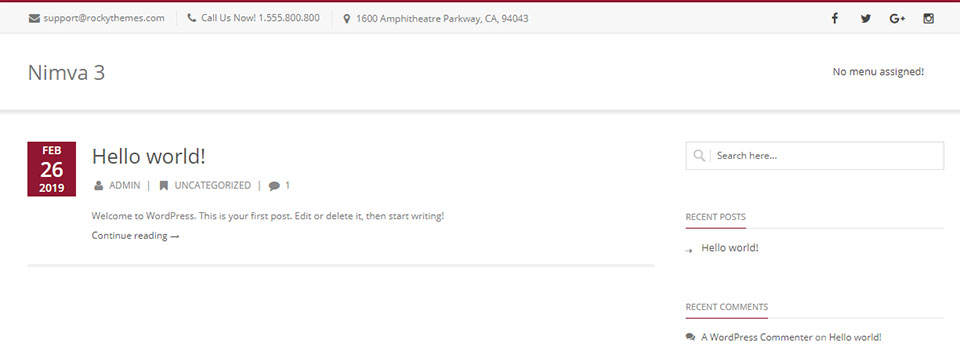
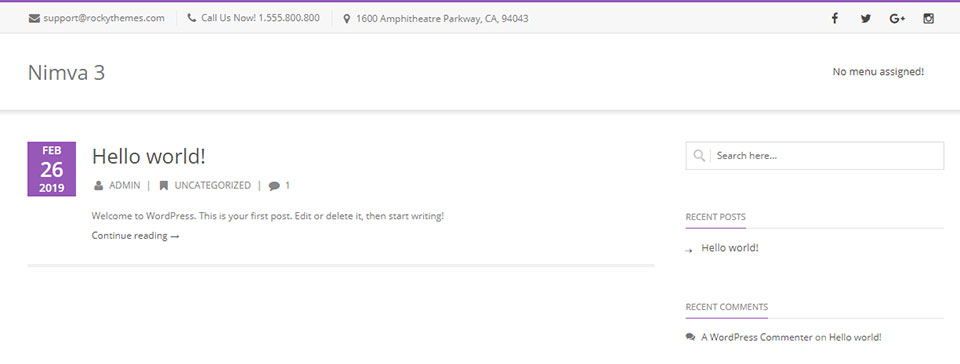
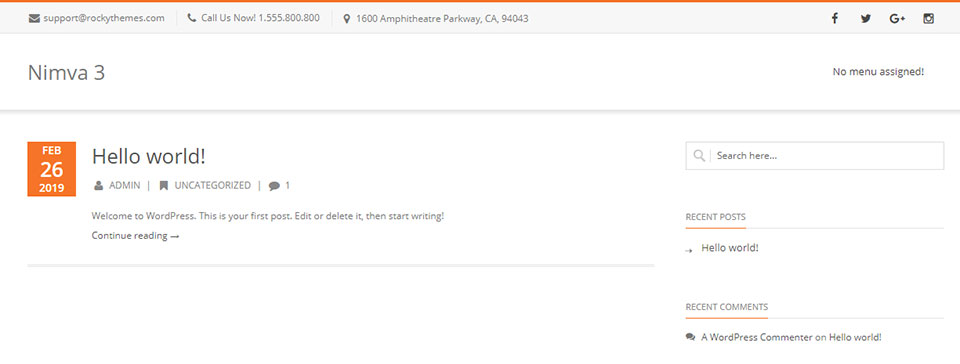
To choose a color predefined color Palette in Nimva 3, navigate to Theme Options -> Color Scheme -> Colorschemes -> Predefined Color Scheme.

Nimva 3 comes with 8 predefined Color Schemes but you can alter and create your own color scheme and change any color you want to your own needs.

Switch around the available schemes and see the changes happening on your site:

Purchase Nimva3, the Ultimate Drag&Drop WP Theme for $47

Purchase Nimva3 and Get Started
Copyright ©2019 RockyThemes
Premium Themes for WordPress

Rocky

  • Contact

Themes

  • Creativo
  • Nimva

Support

  • Video Training
  • Forum

Social

  • Facebook
  • Twitter