Updating Creativo to the latest version
Updating Creativo to the latest version using the theme zip file.
 Written by RockyThemes
Updating Creativo theme to the latest version requires you to have an active account on our site, rockythemes.com
Accounts are created automatically for each user who purchases our themes ( Creativo or Nimva ).
Updating the theme manually
To manually update the Creativo theme to the latest version, follow the steps.
Please login here: https://rockythemes.com/members-login/ – click on Lost your password? if this is the first time you are accessing your account.
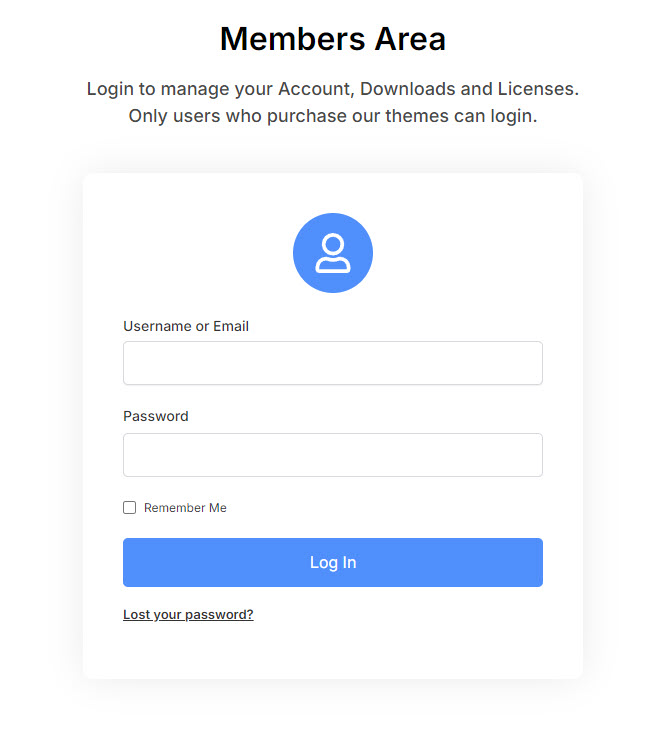
Enter your email and check your email for the password reset link. You should receive the password reset link in a few seconds.
After setting your password, you will be able to login using the email and password ( set by you in the previous step ).
Once logged in, navigate to Downloads area.
Click on the creativo file name to download the zip file for Creativo.
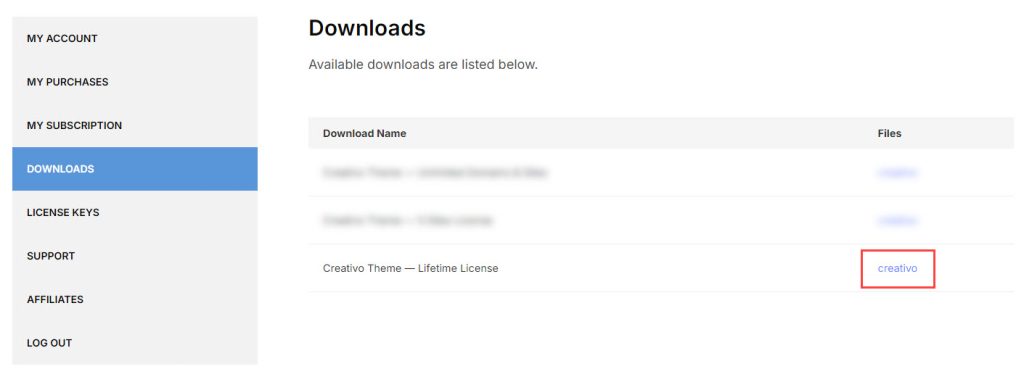
Save the zip file somewhere on your computer, but DO NOT unzip the archive. If you are running on Safari for Mac, try downloading the zip file using Chrome, as Safari will automatically unzip all archives.
TIP: See the How to Stop Safari from unziping archives tutorial down this page, to learn how to stop Safari from unziping all archives.
Now that we have the archive file in zip format, navigate to your WordPress dashboard and use the provided zip file under Appearance -> Themes -> Add New Theme area of your site.
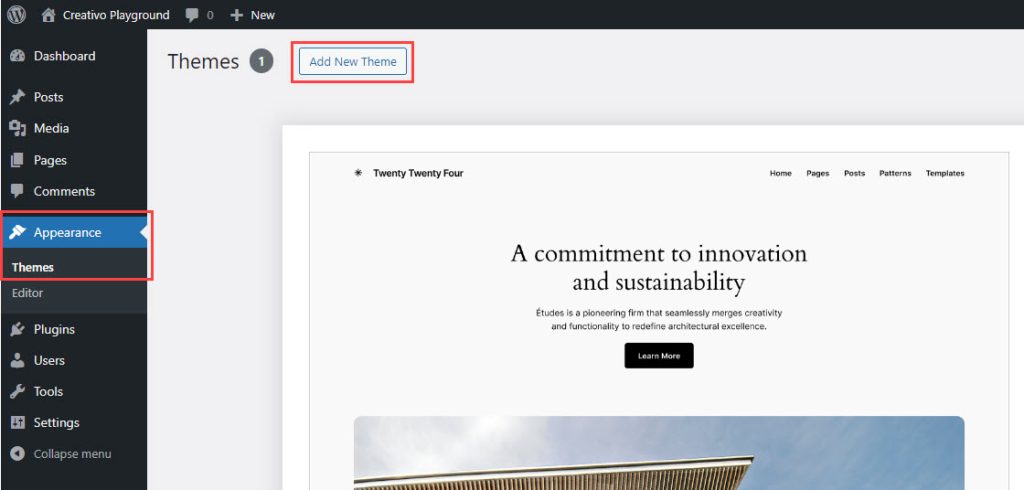
Click on Upload and use the zip file provided above.
Once that is installed, you will be asked to overwrite the existing theme.
Agree and install.
From your RockyThemes account -> License Keys area, copy the license key – the long weird looking text.
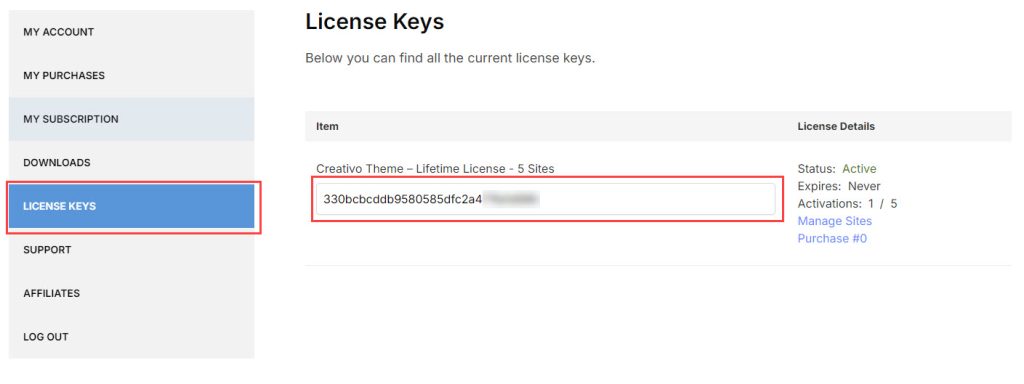
Next navigate back to your WordPress dashboard -> Creativo -> Theme License and paste the license key you copied previously.
Click on Save Changes.
Click on Activate License to activate the actual license.
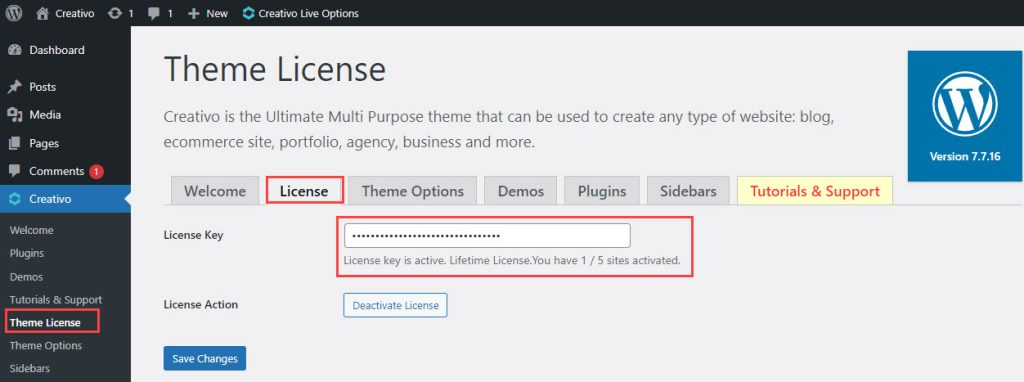
After the license has been added and activated, your theme will receive automatic theme updates, so you don’t have to repeat this process in the future.
Last step is to update the plugins, if there’s any update available, under Creativo -> Plugins tab.

That’s it.
How to Stop Safari from unziping archives
Here’s a tip for Safari to stop unziping your archives:
- Go into Safari Preferences.
- Page titled General.
- Scroll down to the bottom.
- Deselect the box with the text “Open safe files after downloading”.
That’s all.