How to create a Video Background
Create a Video Background on a Row element using the Page Builder.
 Written by RockyThemes
To create a Row element with Video Background, edit your page with the FrontEnd Page Builder.
Hover your mouse over the Row element which will have the Video Background set.
Click the Edit Row button – it’s the Pencil Icon.
In the new Pop-up Window -> go to Video Background Tab.
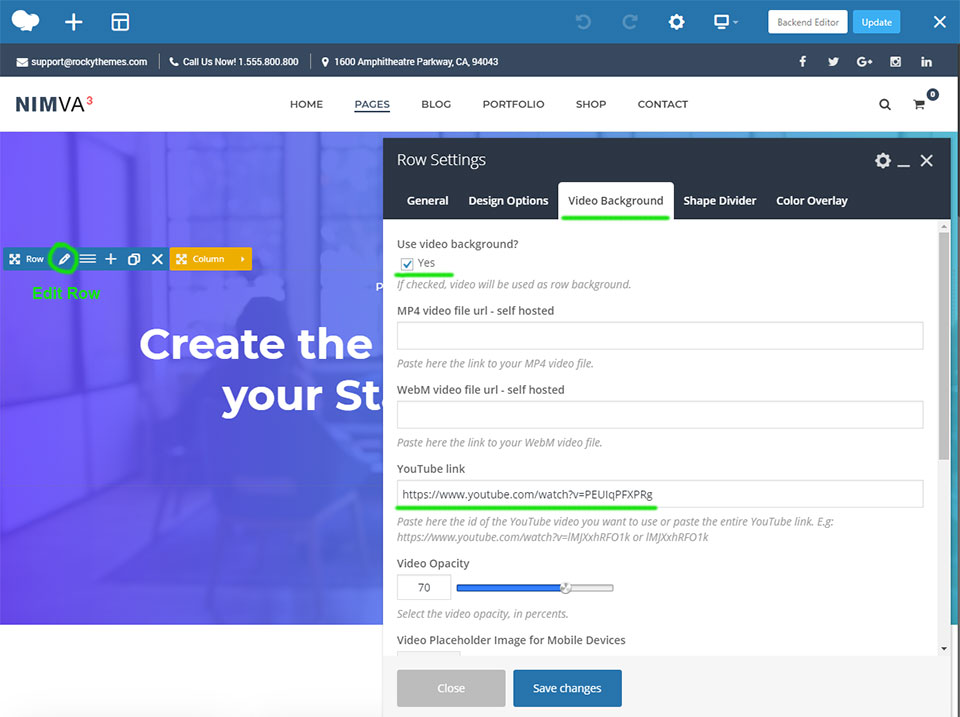
Enable the Video Background option by checking the Yes checkbox.
We can now set a Video Background by :
- using our own Self hosted video – which has to be in two formats: .mp4 and .webm and uploaded to our Media Library; next copy the link of each .mp4 and .webm video links in the corresponding fields
- or by using a Youtube video – in thiscase we have to paste the entire link to our Youtube video. E.g: https://www.youtube.com/watch?v=nbU2bybx5fU
A Video Overlay Color can also be set – this will create a mask over our video, in case we want it to look darker or less visible.
The Background Video Overlay Pattern will add a repeatable pattern image over the video area.
The last setting we have to use is the Video Placeholder Image for Mobile Devices.
This image will be used for mobile devices, where the video background cannot be used.